How to Clear Cache on Xbox Series X and Samsung TV
Clearing temporary cache files can resolve performance issues on Xbox Series X and Samsung smart TVs. For Xbox, power-cycle the console by unplugging it for two minutes. For Samsung TVs, navigate to settings to remove junk files causing app crashes. This maintenance does not delete personal data or apps, offering a simple fix for sluggishness and connectivity errors.
Key points
- Xbox Series X users can clear cache by unplugging the console for two minutes and holding the power button to resolve loading errors and glitches.
- Samsung TV owners can remove temporary files via settings to fix sluggish menus and crashing streaming apps like Netflix and Hulu.
- Clearing cache on both devices removes corrupted temporary data without deleting installed applications, user settings, or software updates.
- Epic Games confirms that clearing Xbox cache can specifically address load failure errors in titles such as Rocket League.
- Accumulated temporary files over time can cause significant performance degradation, making regular cache clearing a recommended maintenance step.
Xbox Series X Cache Maintenance
The Xbox Series X, like many modern computing devices, relies on temporary files to function efficiently. Over time, these cache files can accumulate and become corrupted, leading to noticeable slowdowns, menu lag, and connectivity issues. While a standard restart often suffices for minor hiccups, a deeper cache clear is necessary when the console exhibits persistent glitches. This process is particularly relevant for users who have owned their consoles for several years, as the buildup of temporary data can mimic the performance degradation seen in older hardware.
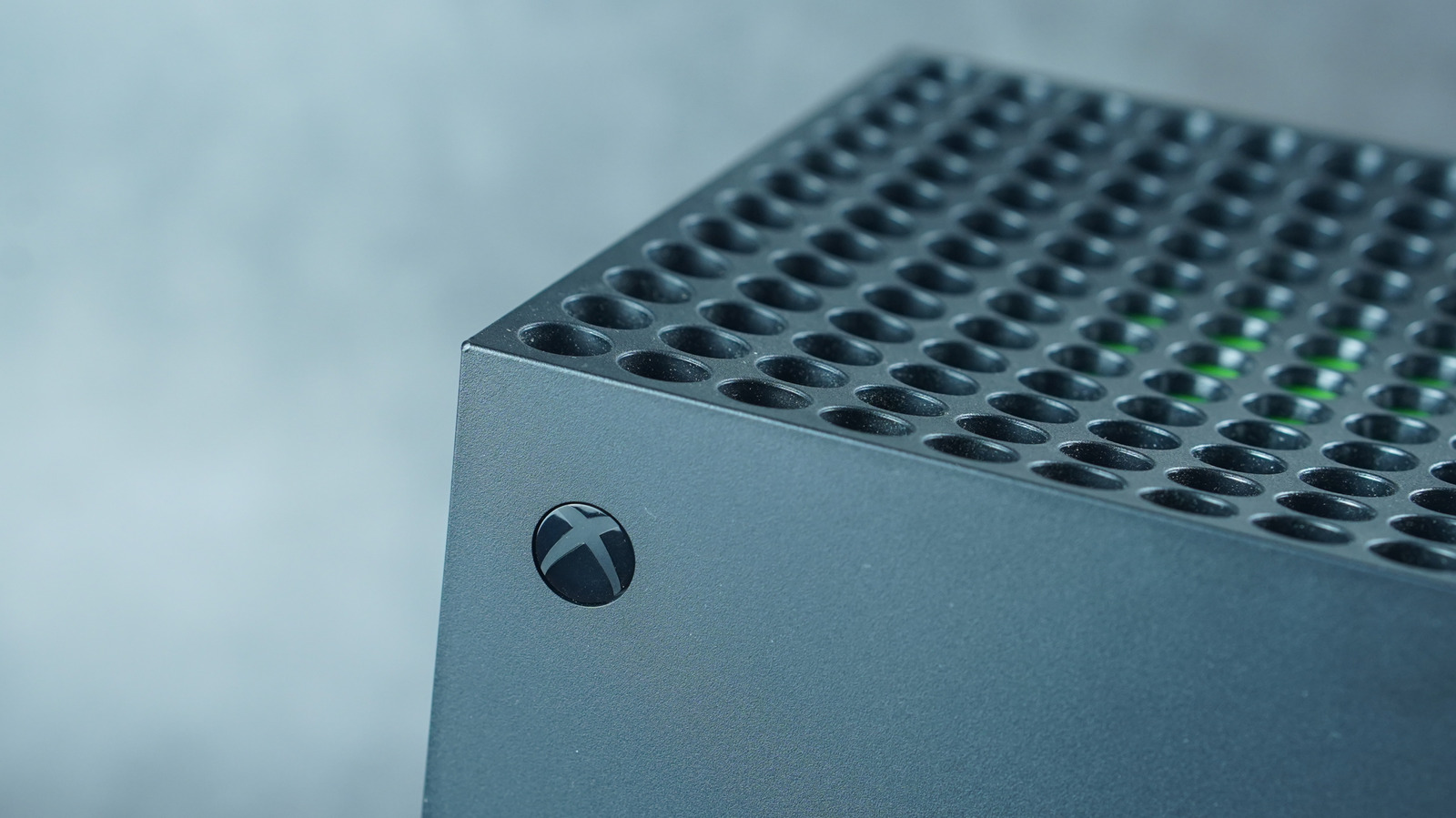
To clear the cache on an Xbox Series X, users must perform a power cycle rather than a simple software restart. The procedure involves turning off the console completely and unplugging the power cord from the back of the device or the power outlet. Users should wait for at least two minutes to ensure all residual power is drained from the system's capacitors. After this interval, the power button on the console should be held down for several seconds before the power cord is reconnected. This action forces the system to discard temporary files stored in the RAM, often resolving issues that a standard reboot cannot fix.
Samsung TV Performance Fixes
Samsung smart TVs operate on similar principles, utilizing cache files to speed up app loading times. However, as users install more applications and stream more content, these temporary files can grow excessively, leading to sluggish performance, freezing menus, and app crashes. Common victims include popular streaming services such as Netflix, Hulu, HBO Max, Peacock, Prime Video, and YouTube. When these apps become unresponsive, users may consider replacing their TV, but clearing the cache is a viable first step.
Clearing the cache on a Samsung TV involves navigating through the settings menu to locate the self-diagnosis or support section, where the option to clear cache data is typically found. This process removes the temporary junk files that are causing the performance bottlenecks. Importantly, this action is non-destructive. It does not delete any downloaded applications, alter audio or video settings, reset Wi-Fi passwords, or erase installed software updates. Users can resume their viewing experience without needing to reconfigure their device or reinstall their favorite apps.
Global Relevance and Technical Context
The need for cache management highlights a universal challenge in consumer electronics: the trade-off between speed and storage efficiency. Temporary files are designed to improve load times, but when they become corrupted or overly numerous, they hinder performance. This issue is not isolated to gaming consoles or televisions but is prevalent across smartphones, web browsers, and personal computers. For the global tech community, understanding these basic maintenance procedures is essential for extending the lifespan of devices and avoiding unnecessary hardware replacements.
Industry support pages, such as those from Epic Games, explicitly recommend cache clearing for specific technical issues. For instance, Rocket League players have been directed to clear their Xbox cache to resolve load failure errors. This indicates that developers are aware of these hardware-level quirks and provide guidance to mitigate them. As consumer tech prices rise, particularly with fluctuations in RAM costs, helping users maintain their existing devices becomes increasingly important. Simple software interventions like cache clearing offer a cost-effective solution to hardware-like symptoms.
Key takeaways
- Xbox Series X users should power-cycle the console by unplugging it for two minutes to clear cache and fix loading errors.
- Samsung TV owners can use settings to remove temporary files, resolving crashes in apps like Netflix and Hulu.
- Clearing cache on both devices is safe and does not delete apps, settings, or software updates.
- Accumulated temporary files can cause significant performance issues, making regular maintenance beneficial.
- Developers and support teams recognize cache corruption as a common cause of app and system glitches.
Sources
The WireByte editorial team synthesises technology news from multiple primary sources, verifies the facts, and links every source. Articles are produced with AI assistance and reviewed under our editorial policy.